CLI
The hardwood CLI lets you inspect and convert Parquet files from the command line — useful for exploring datasets, debugging file structure, and quick format conversions without writing Java code. It reads local files and S3 URIs, and ships as a GraalVM native binary with instant startup.
Pre-built native binaries for Linux, macOS, and Windows are available from the release page. You can also run the CLI via Docker without installing it locally — see the Docker section below.
macOS
The binary is not notarized. On first run, macOS Gatekeeper will block it. Remove the quarantine flag after extracting:
Available Commands
| Command | Description |
|---|---|
hardwood info |
Display high-level file information |
hardwood schema |
Print the file schema, including logical-type annotations such as VARIANT(1) on Variant groups |
hardwood print |
Print rows as an ASCII table (head, tail, or all); Variant columns are decoded to JSON-like text |
hardwood convert |
Convert a Parquet file to CSV or JSON (head, tail, or all); Variant columns are emitted as a JSON string in CSV and as a native JSON subtree in JSON |
hardwood footer |
Print decoded footer length, offset, and file structure |
hardwood inspect pages |
List data and dictionary pages per column chunk; includes per-page min/max when the file has a page index |
hardwood inspect dictionary |
Print dictionary entries for a column |
hardwood inspect columns |
Show compressed and uncompressed byte sizes per column, ranked |
hardwood inspect rowgroups |
Display per-row-group column chunk metadata (sizes, codec) |
hardwood dive |
Interactively explore a file's structure in a TUI |
hardwood help |
Display help information about a command |
Examples
# Show file overview
hardwood info -f data.parquet

# Print schema
hardwood schema -f data.parquet

# Show first 20 rows
hardwood print -n 20 -f data.parquet

# Show last 5 rows
hardwood print -n -5 -f data.parquet

# Show all rows
hardwood print -f data.parquet

# Convert to CSV
hardwood convert --format csv -f data.parquet

# Show dictionary entries for a column (first 50 entries per row group by default)
hardwood inspect dictionary -f data.parquet -c category

# Show all dictionary entries for a column (--limit 0 means unlimited)
hardwood inspect dictionary -f data.parquet -c category --limit 0

# Convert first 100 rows to JSON
hardwood convert -n 100 --format json -f data.parquet

# Convert last 50 rows to CSV
hardwood convert -n -50 --format csv -f data.parquet
Interactive exploration (dive)
hardwood dive launches a terminal UI for interactively navigating a Parquet file's structure:
What you can do with it
dive composes the slices that the batch subcommands (info, schema,
footer, inspect, print) each surface separately into a single
navigable session. Typical things to reach for it for:
- Find a column quickly in a wide schema — Schema screen,
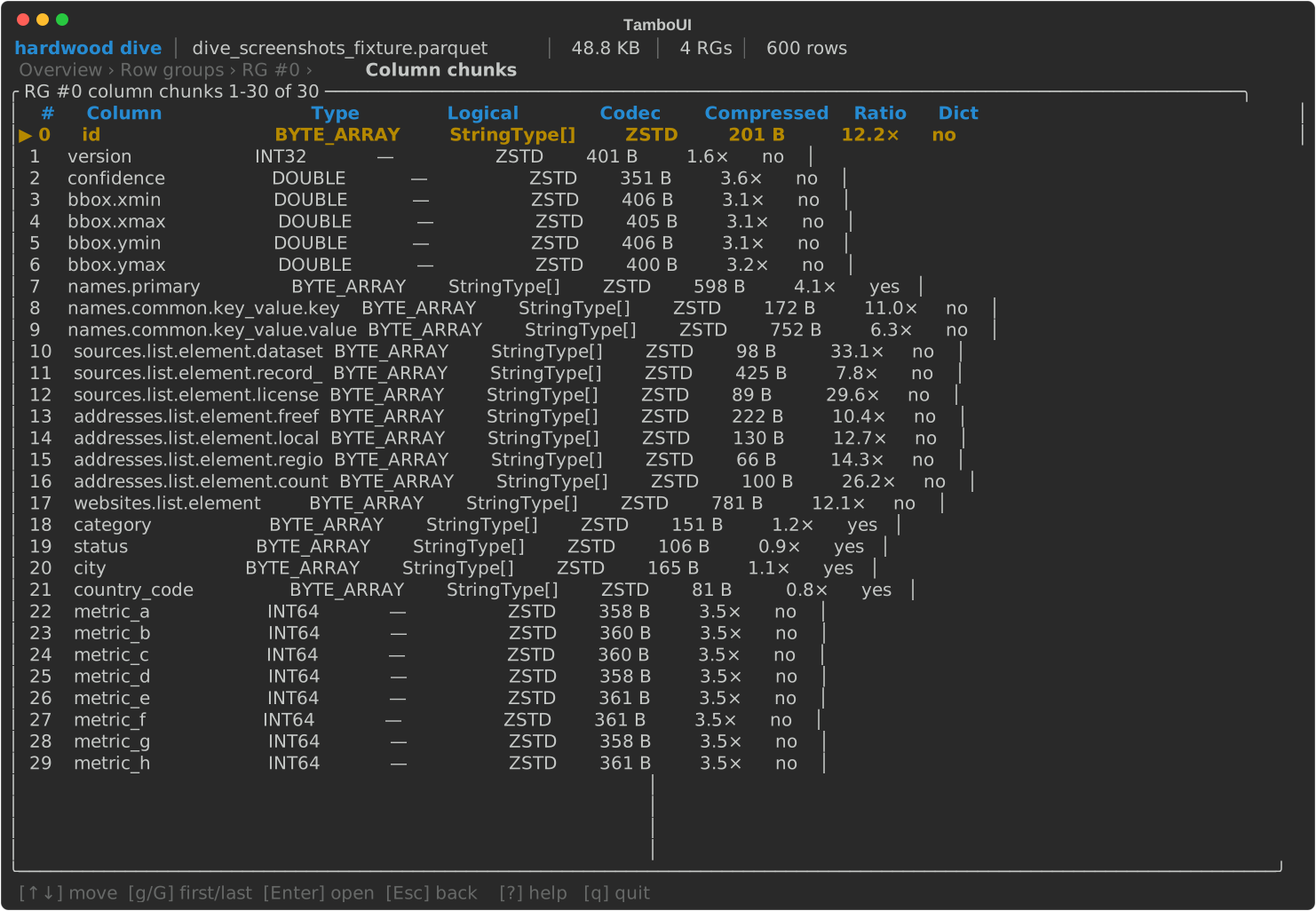
/to filter the tree to leaves matching a substring. - Spot the heavy column chunks in a row group — Row groups → Column chunks ranks by compressed size with the codec and dictionary flag alongside.
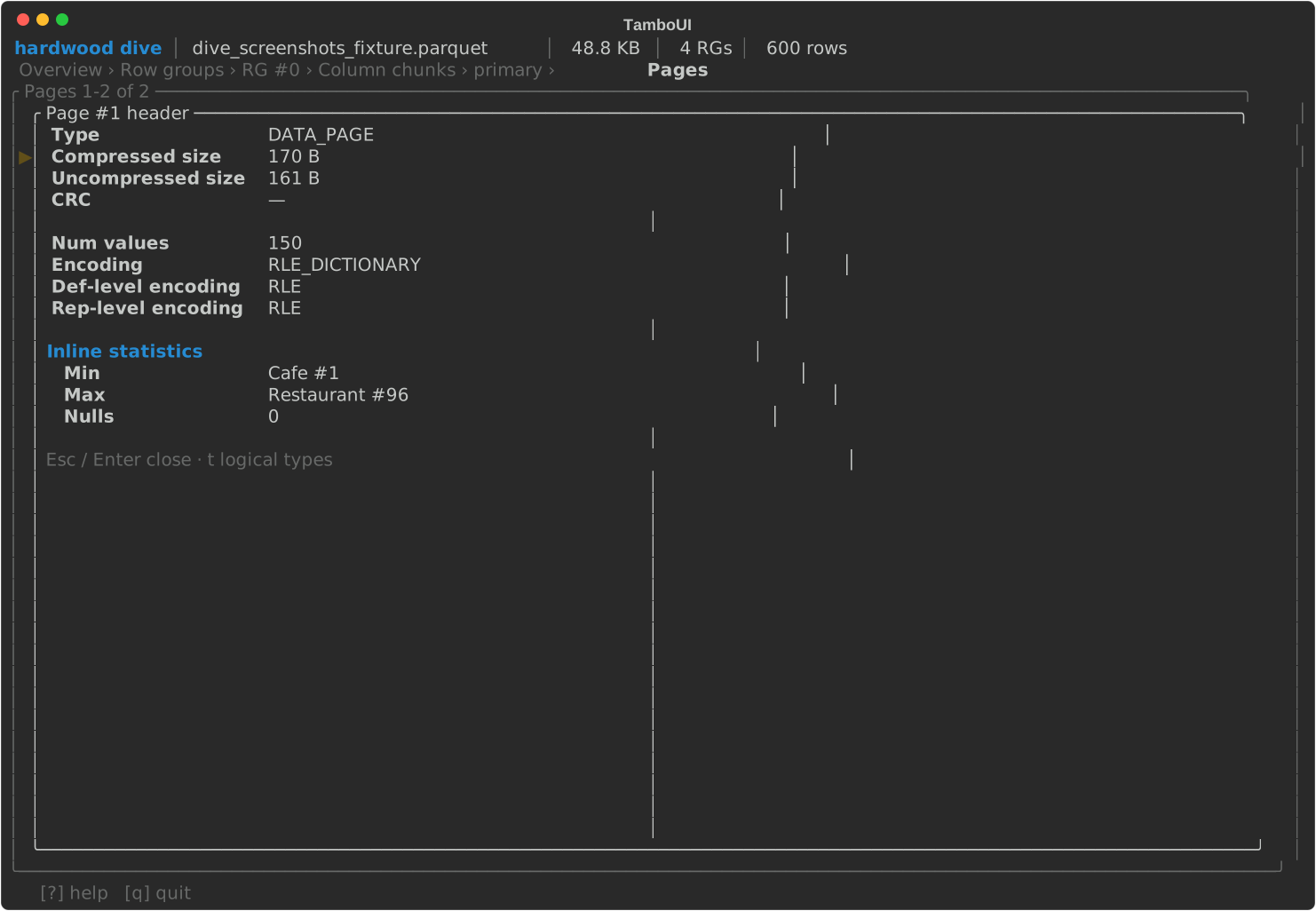
- Check page-level statistics and indexes — drill from a chunk into
Pages, Column index, or Offset index;
Enteron a page opens the full thrift header, including inline statistics when no Column Index is present. - Inspect dictionary entries for a column — Dictionary screen with
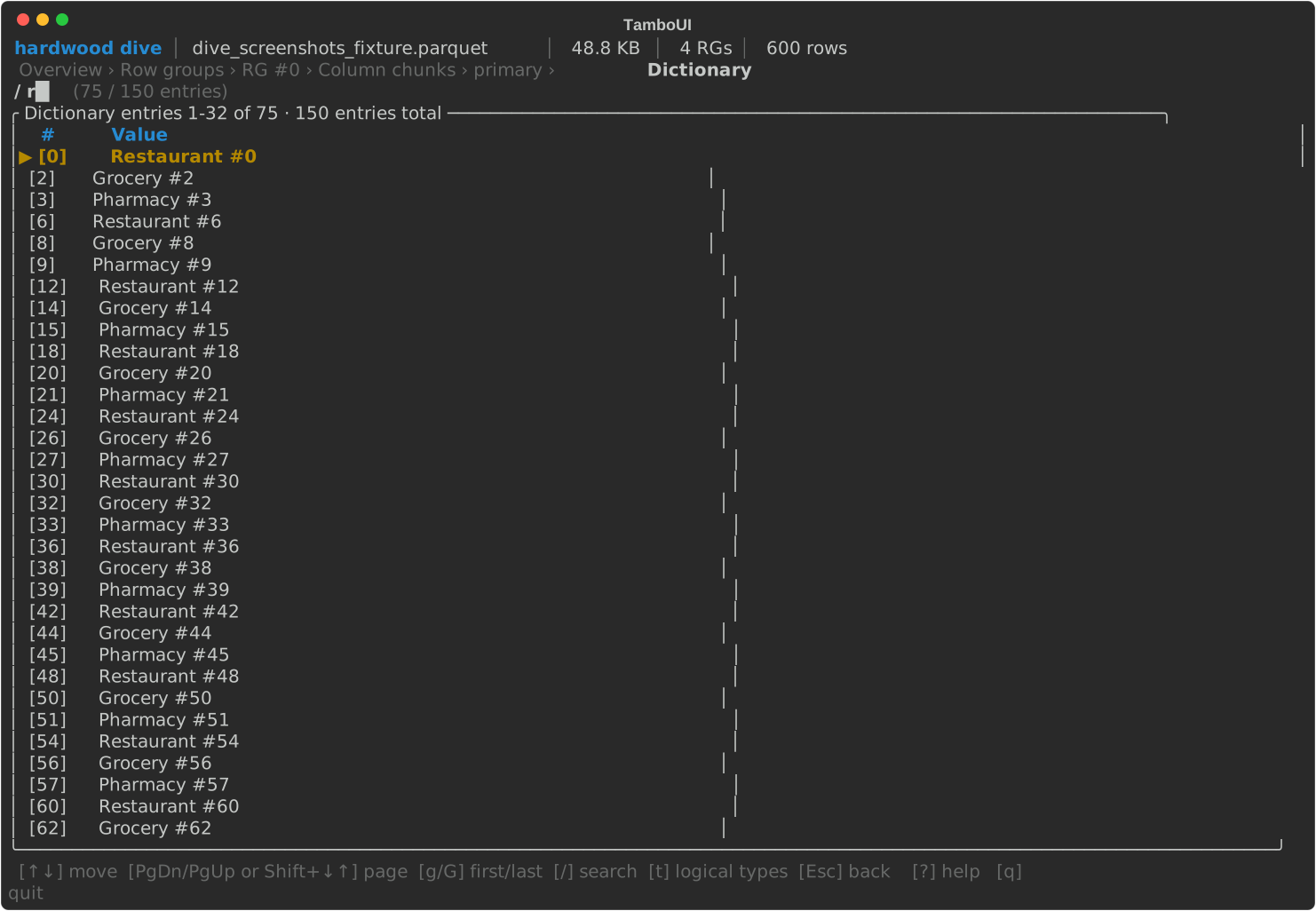
/substring filter;Enterreveals the full untruncated value of the highlighted entry. - Preview a few rows without exporting — Data preview paginates with
PgDn/PgUp(g/Gfor first/last);Enteropens a per-row modal where each field can be expanded inline. - Decode key/value metadata — Spark JSON schemas pretty-print, Arrow IPC schemas decode to a hex dump.
- Compare a column across row groups — from Schema,
Enteron a leaf jumps to a one-row-per-RG view of that column's sizes, encodings, and stats. - Read raw file layout — Footer & indexes shows file size, footer offset, encoding/codec histograms, page-index coverage, and aggregate byte breakdowns; from there you can drill into a file-wide list of every chunk's column index, offset index, or dictionary region.
Keys
| Key | Action |
|---|---|
↑ / ↓ |
Move selection |
PgDn / PgUp (or Shift-↓ / Shift-↑) |
Page down / up |
g / G |
Jump to first / last row |
Enter |
Drill into the selected item |
Esc / Backspace |
Go back one level |
Tab / Shift-Tab |
Switch focused pane |
/ |
Inline search (Schema, Column index, Dictionary) |
t |
Toggle logical / physical value rendering (screen-specific: Pages, Column index, Dictionary, Data preview, Column chunk detail) |
e / c |
Expand / collapse all (Schema tree; Data preview row modal) |
o |
Jump back to Overview |
? |
Toggle help overlay |
q / Ctrl-C |
Quit |
The keybar at the bottom of every screen lists the keys that are actually meaningful in the current context — so the menus above show the full vocabulary, but the keybar tells you which subset is live right now.
Available screens:
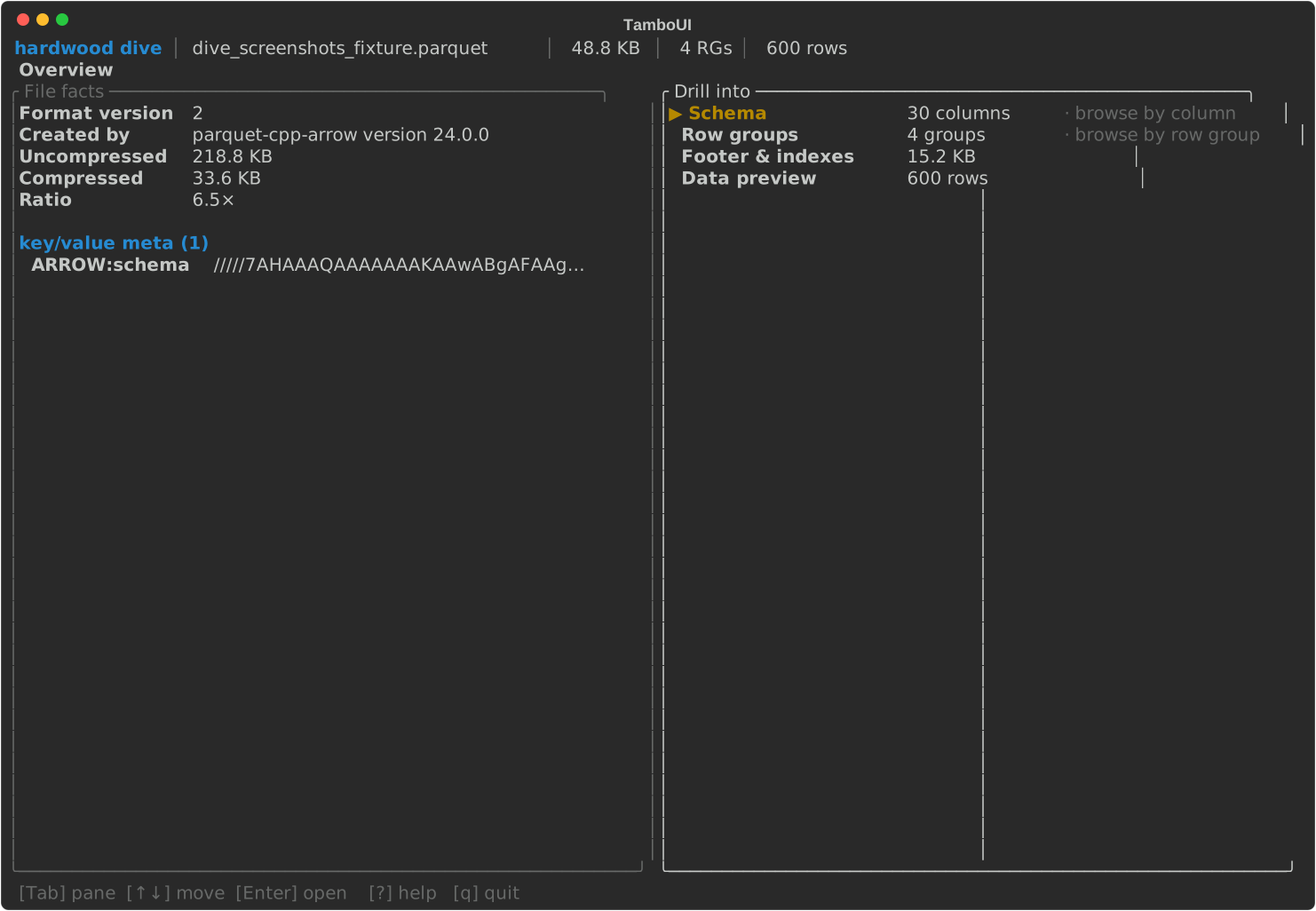
- Overview
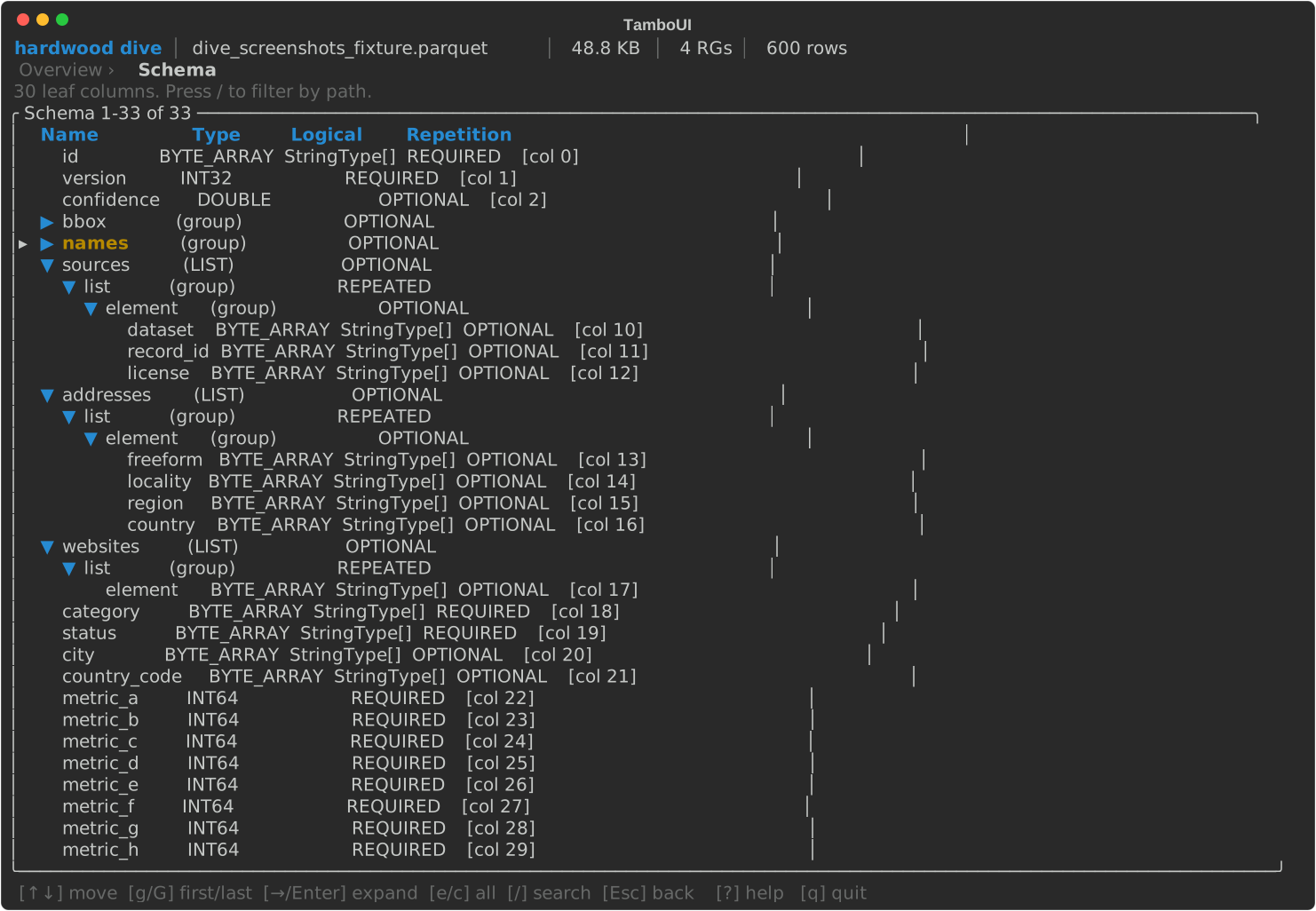
- Schema — expandable tree of groups and leaves
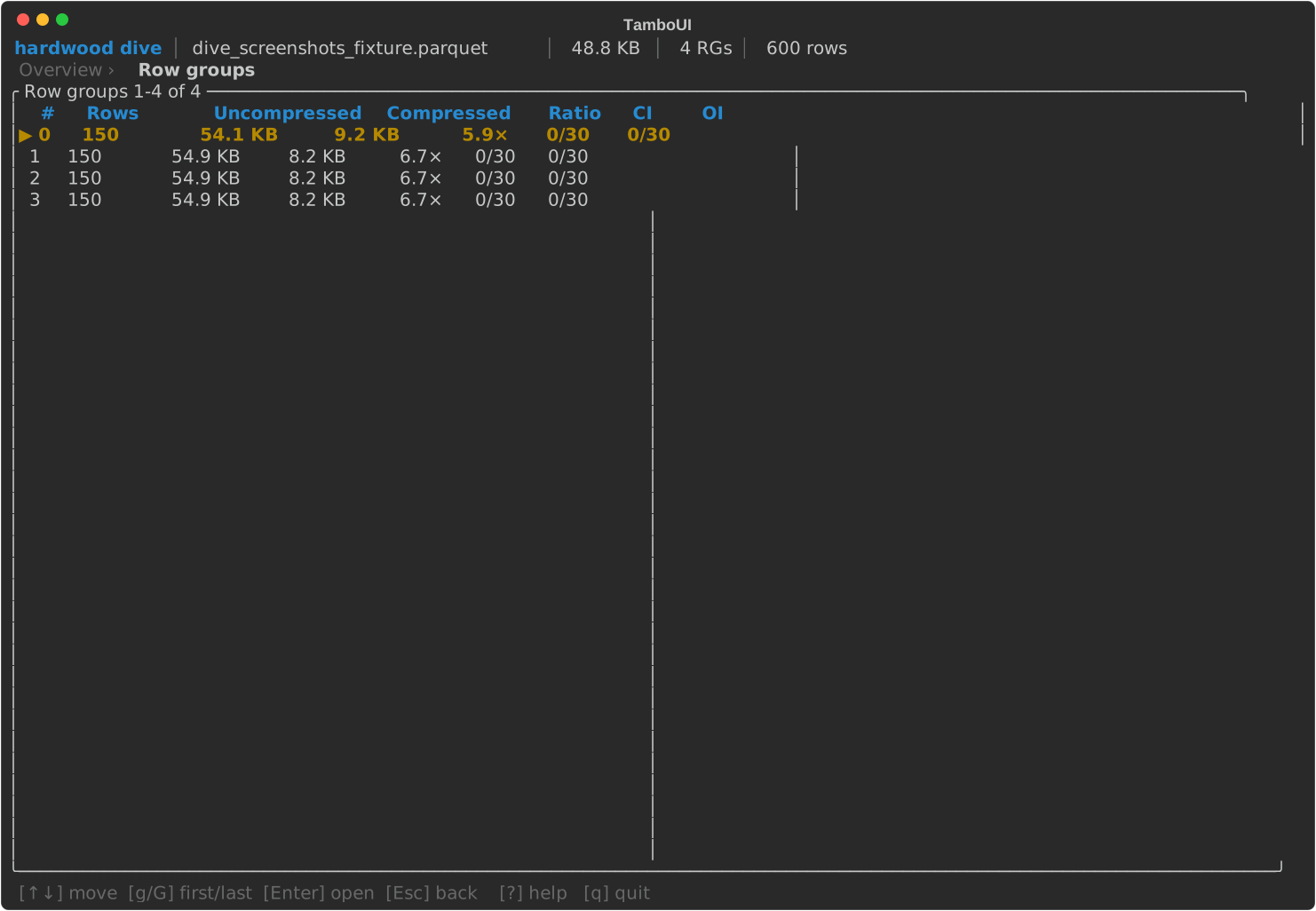
- Row groups
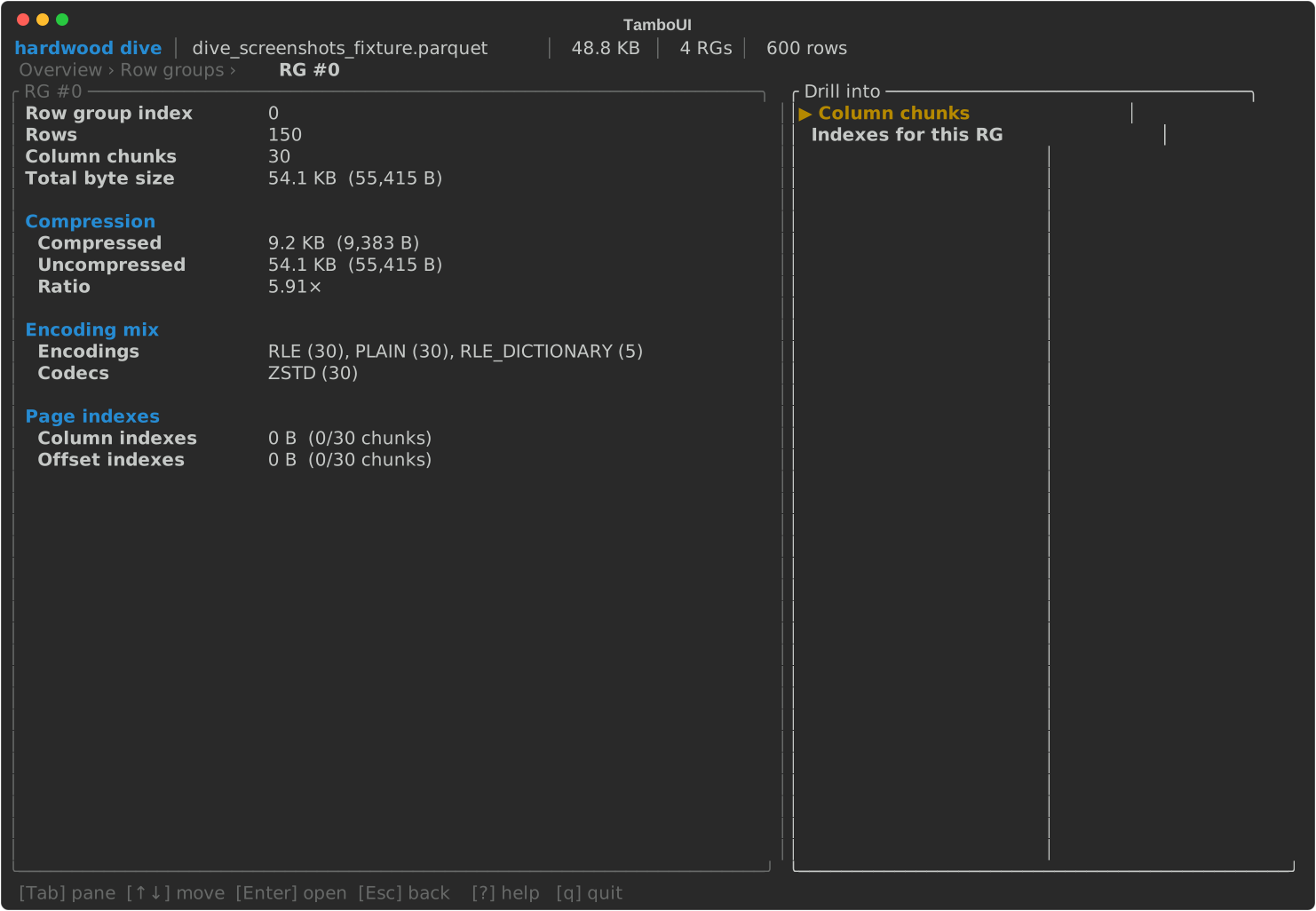
- Row group detail
- Column chunks
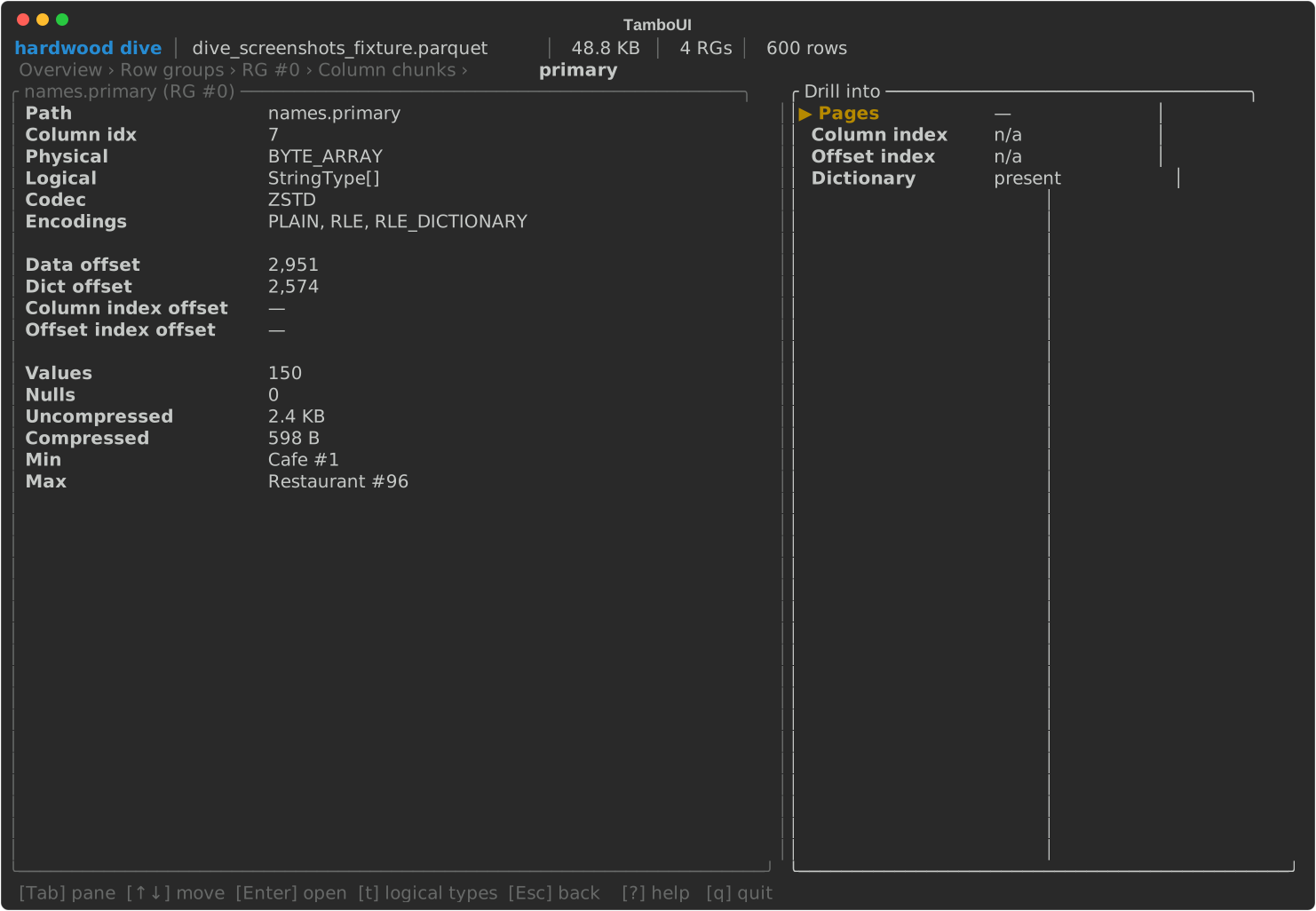
- Column chunk detail — facts pane plus drill menu
- Pages — with a page-header modal on Enter
- Column index
- Offset index
- Footer & indexes — also drills into a file-wide list of every chunk's column index, offset index, or dictionary region
- Column-across-row-groups — from the Schema screen
- Dictionary — full-value modal on Enter and
/inline search - Data preview — row values via
RowReader;←/→scrolls the visible column window,PgDn/PgUpflips pages
A tour through the main screens (click any shot to open it full size):
/ inline search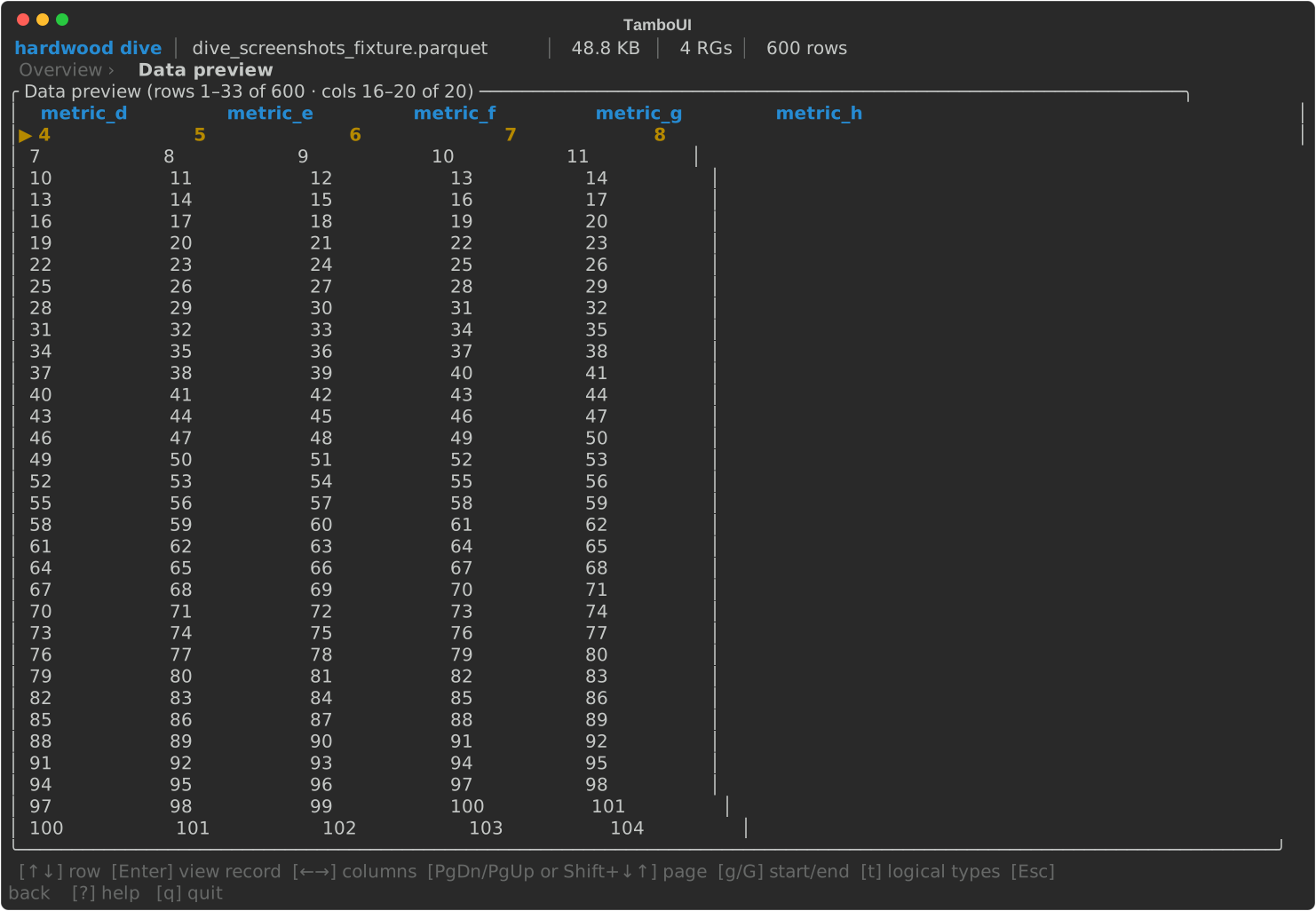
Every screen shares a four-region layout — a top bar with file identity, a breadcrumb showing the navigation stack, the active screen body, and a keybar (all four visible in the Overview screenshot above).
Typical drill path
- Overview → pick Row groups from the drill menu.
- Row groups → select a row, Enter — opens that row group's detail.
- Row group detail → Enter — opens its column chunks.
- Column chunks → select a column, Enter — opens the chunk detail.
- Column chunk detail (facts pane + drill menu) → pick Pages, Column index, Offset index, or Dictionary.
- Drill sub-screens (Pages, Column index, etc.) support Esc back up to the previous level; in Pages and Dictionary, Enter opens a modal with the full header / value.
Alternative entry: from Overview → Schema, navigate the tree of group and
primitive nodes with → / ←; Enter on a leaf drills into a
Column-across-row-groups view — one row per row group showing that column's
sizes, encoding, stats — and from there into the chunk detail.
Inline search
The Schema, Column index, and Dictionary screens support inline
search. Press / to enter search-edit mode:
- Schema — filters leaf columns whose field path contains the query. While the filter is active, the tree collapses to a flat list of matches.
- Column index — filters pages whose formatted min or max value contains the query.
- Dictionary — filters entries whose value contains the query.
In all three cases: typed characters extend the filter; Backspace trims; Esc clears the filter and exits edit mode; Enter commits (keeps the filter applied but exits edit mode). The table re-filters live as you type.
Reading Files from S3
All commands accept s3:// URIs via the -f flag:
The CLI resolves credentials via the standard AWS credential chain (AWS_ACCESS_KEY_ID / AWS_SECRET_ACCESS_KEY / AWS_SESSION_TOKEN environment variables, ~/.aws/credentials, SSO, EC2/ECS instance profiles, web identity). See the S3 module page for the resolution order and provider details.
The CLI additionally reads these environment variables:
| Environment Variable | Description |
|---|---|
AWS_REGION |
AWS region (also read from ~/.aws/config if not set) |
AWS_ENDPOINT_URL |
Custom endpoint for S3-compatible services (MinIO, LocalStack, R2, etc.) |
AWS_PATH_STYLE |
Set to true to use path-style access (required by some S3-compatible services) |
Shell Completion
The distribution includes a Bash completion script at bin/hardwood_completion. Source it in your shell to enable tab completion for commands, options, and arguments:
To make it permanent, add the line above to your ~/.bashrc or ~/.bash_profile.
Docker
A minimal Fedora-based Docker image is published to the GitHub Container Registry for Linux amd64 and arm64:
Run any command by passing it after the image name:
docker run --rm ghcr.io/hardwood-hq/hardwood:1.0.0.CR2 --help
docker run --rm ghcr.io/hardwood-hq/hardwood:1.0.0.CR2 info -f /data/data.parquet
Mount a local directory to access files on the host:
docker run --rm \
  -v "$(pwd)":/data \
  ghcr.io/hardwood-hq/hardwood:1.0.0.CR2 \
  schema -f /data/data.parquet
The dive TUI needs an interactive terminal, so pass -it:
docker run --rm -it \
  -v "$(pwd)":/data \
  ghcr.io/hardwood-hq/hardwood:1.0.0.CR2 \
  dive -f /data/data.parquet
Start an interactive shell with tab completion pre-loaded: